Vali keel

Fill Out Form A PDF Online – No Download Required

  1. Riik USA
  2. Keel Inglise
  3. osakond General Services Administration
  4. Tegevus Forms
Täitke see vorm
Fill Out Form A PDF Online – No Download Required

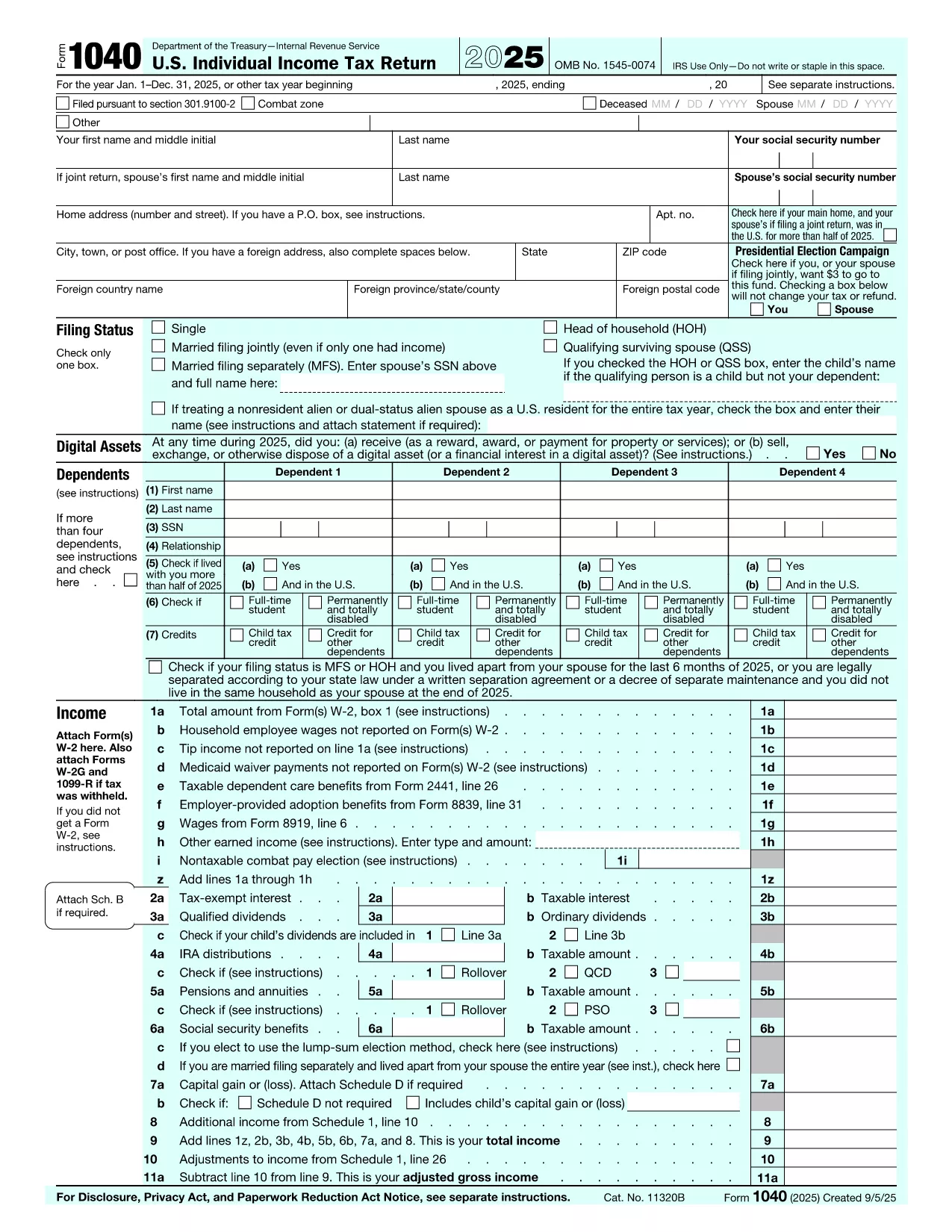
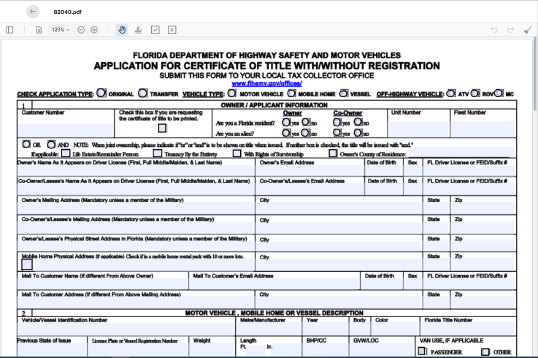
Form A is a versatile, government‑approved PDF used for a variety of applications – from business registrations to grant requests. Instead of printing, downloading, and editing the file in a separate PDF editor, you can complete the entire form directly in your browser with the Formize PDF Filler app.

What Is Form A PDF?

Form A is a fillable PDF that contains interactive fields for text, dates, checkboxes, and signatures. It complies with PDF 1.7 standards, making it compatible with all major browsers and the Formize platform.

How to Complete Form A with Formize

Follow these simple steps to fill out Form A without ever leaving the page:

  • Click the bright "Fill out this form" button below.
  • Wait a few seconds while the Formize PDF Filler app loads securely.
  • Enter your information directly into each highlighted field.
  • Use the built‑in signature tool to sign electronically.
  • When you’re finished, click "Save & Download" to get a completed PDF, or choose "Email to Me" for instant delivery.

Common Mistakes to Avoid

  • Leaving required fields blank – the filler will highlight missing entries in red.
  • Using unsupported fonts or special characters – stick to standard alphanumeric characters.
  • Forgetting the electronic signature – without a signature the form is considered incomplete.
  • Saving the form before reviewing – use the "Preview" button to double‑check all entries.

Where to Submit the Finished Form

Once you have a completed PDF, you can:

  • Upload it to the agency’s portal (e.g., state licensing department).
  • Email it directly to the contact address listed on the form instructions.
  • Print and mail a hard copy if required by the receiving organization.

Need More Help?

All the guidance you need is built into the Formize interface – tooltips appear when you hover over each field. If you still have questions, consult the official form instructions PDF for detailed explanations.

KKK
  • Do I need to install any software to fill Form A?

    No. Formize’s PDF Filler runs completely in your web browser – no downloads or plugins required.

  • Is the information I enter secure?

    Yes. All data is encrypted with TLS 1.3 during the session and never stored on our servers after you download the file.

  • Can I edit the form after I’ve saved it?

    You can reopen the saved PDF in Formize again to make changes, or edit it with any standard PDF viewer that supports form fields.

  • What if I make a mistake while filling the form?

    Use the “Undo” button or simply click the field again to correct the entry. Required fields will show a red outline until fixed.

  • Do I need an Adobe Acrobat license?

    No. The Formize filler provides all the functionality you need without Adobe Acrobat.

  • Can I print the completed Form A directly from the browser?

    Absolutely. After you finish, click “Print” in the toolbar to produce a hard‑copy version.

  • Is there a size limit for the PDF I can fill?

    Formize handles PDFs up to 50 MB comfortably, which covers virtually all standard government forms.

  • Where can I find the official instructions for Form A?

    The official instruction guide is linked at the bottom of the page – it’s the same PDF you’re filling out, with a separate instructions section.

KUIDAS

5 lihtsa sammuga veebis tasuta Form A PDF täitmine:

  1. 1
    Click the Fill‑out Button
    Press the “Fill out this form” button below the description to launch the Formize PDF Filler.
  2. 2
    Wait for the App to Load
    The secure filler loads in a few seconds – you’ll see the form appear with highlighted input fields.
  3. 3
    Enter Your Information
    Type directly into each field. Use the tab key to move quickly between sections.
  4. 4
    Add Your Electronic Signature
    Click the signature box, draw or type your name, and confirm.
  5. 5
    Save or Email the Completed PDF
    When all required fields are filled, click “Save & Download” or “Email to Me” to get the final document.
PDF-täiterakenduse vormindamine
UMBES

mall Form A PDF

Traditsioonilise PDF-dokumendi vaatamise ja täitmise funktsioonide komplektiga koos veebirakenduse ja tundliku paigutuse eelistega saate märksõna Form A PDF lõpule viia minutitega.

FUNKTSIOONID

PDF täiteaine

Lihtsaim viis märksõna Form A PDF veebis täitmiseks

  • Täitke kiiresti Form A PDF
    Kas otsite viisi Form A PDF kiireks veebis täitmiseks? Meie veebipõhise tasuta PDF-vormi täitja abil saate teada, kuidas seda PDF-dokumenti vähem kui minutiga redigeerida ja täita.
  • Lihtne kasutada veebipõhist PDF-redaktorit
    Kas olete tüdinenud PDF-failide printimisest, et saaksite neid enne uuesti skannimist ja tagasisaatmist redigeerida? Redigeerige PDF-dokumente võrgus tasuta. Kasutage meie veebipõhist PDF-redaktorit, et säästa aega ja paberit.
  • Suurepärased tööriistad, kõik platvormid
    Kas soovite teada, kuidas Macis täita Form A PDF või kuidas kasutada tasuta PDF-täitjat? Meie veebipõhised PDF-tööriistad töötavad kõigil platvormidel.
  • Turvaline failide salvestusruum
    Lõpetatud failid „Form A PDF” salvestatakse turvatud andmebaasi, mida haldab Amazon Cloudi hostimine. Saate oma failid meie süsteemist igal ajal kustutada. Igal juhul kustutatakse need failid 24 tunni pärast automaatselt.
  • Vestelge kasutajaga Form A PDF
    Vestelge kasutajaga „Form A PDF” saidil Chatize, mis on tasuta PDF-i lugeja abiline. Esitage küsimusi ja saage vastused märksõnalt „Form A PDF”. Klõpsake ülaloleval nupul Vestle dokumendiga.

Kustuta täitmise seanss

Kas kustutada valitud täitmisseanss? Sellisel juhul läheb teie edu vormi täitmisel kaotsi.

Kustuta redigeerimisseanss

Kas kustutada valitud redigeerimisseanss? Sel juhul lähevad teie edu vormi loomisel ja redigeerimisel kaotsi.