hamburger-menu icon
भाषा का चयन करें

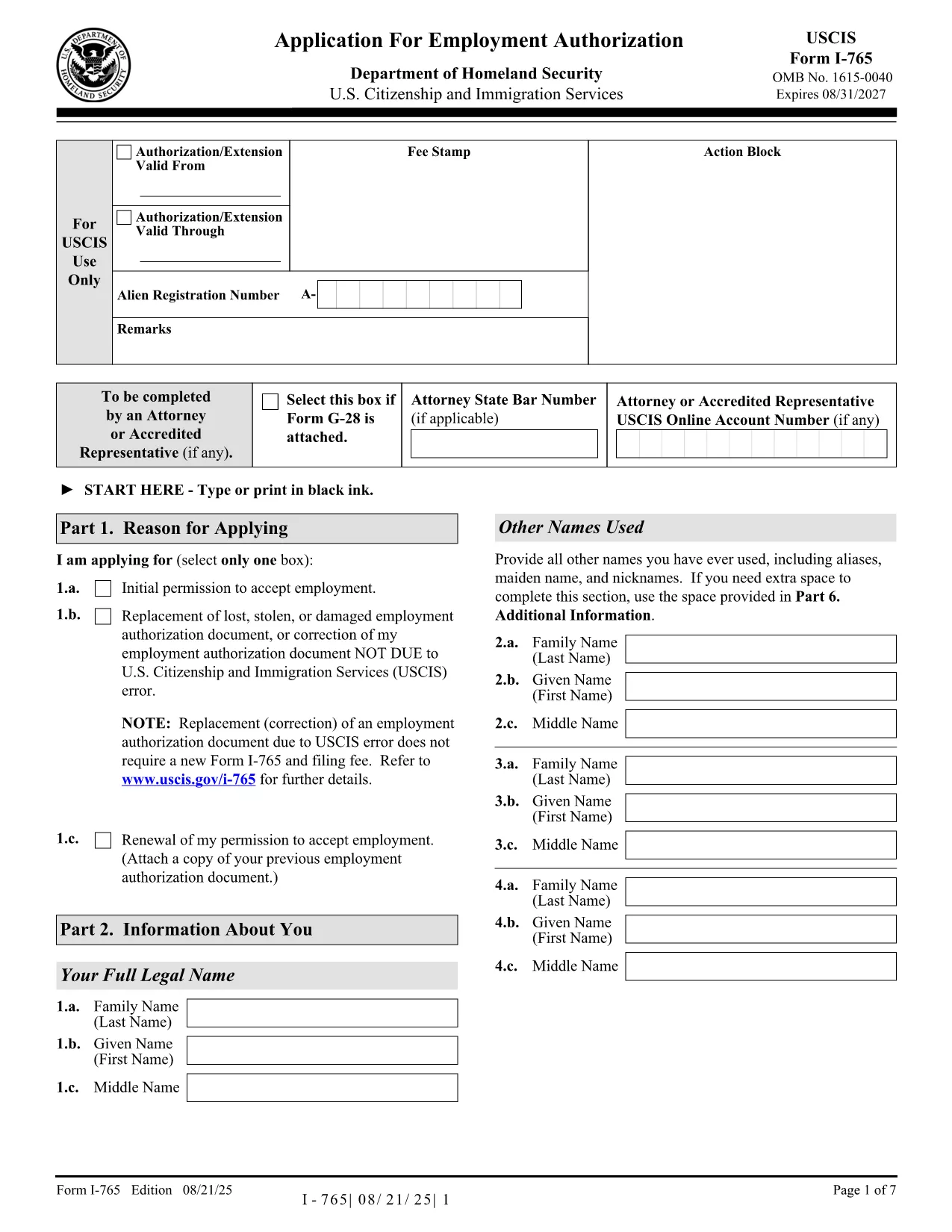
USCIS I-765 Application Form – Fillable PDF with All Application Form Questions

  1. देश अमेरीका
  2. भाषा अंग्रेज़ी
  3. विभाग USCIS
  4. गतिविधि अप्रवासन
फार्म को भरो
USCIS I-765 Application Form – Fillable PDF with All Application Form Questions

The I‑765 Application for Employment Authorization is the official USCIS form used by non‑citizens who want to work in the United States. Our fillable PDF version lets you answer every application form question directly in the browser – no extra PDF editor required.

Why Use the Fillable I-765 PDF on Formize?

Formize provides a fast, secure, and mobile‑friendly environment. You can:

  • Enter data into each field instantly.
  • Save progress and return later.
  • Validate entries with built‑in checks (date format, required fields, etc.).
  • Download a completed PDF ready for submission to USCIS.

Step‑by‑Step Guide to Fill Out the Form Online

Follow these simple steps instead of downloading the form and opening a PDF editor:

  1. Click the "Fill out this form" button below.
  2. Wait a few seconds while the Formize PDF Filler app loads.
  3. Complete each section – the filler highlights required fields and shows helpful tooltips for every application form question.
  4. When you’re done, click "Save & Download" to get a printable PDF.
  5. Print, sign, and mail the form to the address listed on the USCIS instructions.

Common Mistakes & How to Avoid Them

  • Leaving required fields blank: Formize marks them in red and prevents you from saving.
  • Incorrect date format: Use MM/DD/YYYY; the filler auto‑formats for you.
  • Using the wrong eligibility category: Review the USCIS eligibility chart; tooltips provide quick explanations.
  • Signing the PDF before printing: USCIS requires a handwritten signature on the final printed copy.

Where to Find Help and Official Resources

For detailed guidance, visit the official USCIS page for Form I‑765. If you have questions about your specific situation, consult an immigration attorney.

Ready to start? Click the button below and let Formize handle the rest.

सामान्य प्रश्न
  • Do I need to download any software to fill the I‑765 form?

    No. The Formize PDF Filler works entirely in your web browser – just click the button and start typing.

  • Can I save my progress and return later?

    Yes. Use the "Save Draft" button to store your entries in the browser. When you come back, click "Load Draft" to continue.

  • Will the fillable PDF preserve the official USCIS layout?

    Absolutely. The PDF is the exact USCIS I‑765 document, only enhanced with interactive fields.

  • Do I need a digital signature?

    USCIS requires a handwritten signature on the printed form. You can add a digital signature for your records, but be sure to sign the hard copy before mailing.

  • What if I make a mistake after downloading?

    Print a new copy and fill it out again, or edit the saved PDF with a PDF editor before printing.

  • Is my personal information safe?

    Formize uses SSL encryption for all data transmitted. Your information is never stored on our servers after you download the completed PDF.

  • Can I submit the I‑765 form electronically?

    USCIS currently accepts only paper submissions for the I‑765. After completing the PDF, print, sign, and mail it as instructed.

  • Where do I send the completed I‑765 form?

    Refer to the USCIS filing instructions on the official page; the address varies based on your eligibility category and state of residence.

  • What eligibility categories are available on the form?

    The form includes categories such as F‑1 (OPT), H‑4, L‑2, and many others. Hover over each category in Formize for a brief description.

  • How long does the Formize filler take to load?

    Typically under 5 seconds on a standard broadband connection.

कैसे करें

application form questions को मुफ़्त में, ऑनलाइन 4 आसान स्टेप्स में कैसे भरें:

  1. 1
    Open the Fillable Form
    Click the "Fill out this form" button on the page. The Formize PDF Filler app will launch in a new window.
  2. 2
    Load the Form
    Wait a few seconds while the I‑765 PDF loads. All fields become interactive automatically.
  3. 3
    Enter Your Answers
    Type your responses to each application form question. Required fields are highlighted and validated in real time.
  4. 4
    Save and Download
    When you finish, click "Save & Download". A completed PDF file will be saved to your device, ready for printing and signing.
पीडीएफ फिलर एप तैयार करें
के बारे में

application form questions टेम्पलेट

एक पीडीएफ दस्तावेज़ को देखने और भरने के लिए सुविधाओं के पारंपरिक सेट के साथ, एक वेब एप्लिकेशन और उत्तरदायी लेआउट के लाभों के साथ, आप application form questions को मिनटों में पूरा कर सकते हैं।

विशेषताएं

पीडीएफ भराव

पीडीएफ फॉर्म ऑनलाइन भरने का सबसे आसान तरीका

  • जल्दी से application form questions भरें
    application form questions को जल्दी से ऑनलाइन भरने का कोई तरीका खोज रहे हैं? हमारे ऑनलाइन नि:शुल्क पीडीएफ फॉर्म फिलर के साथ, आप एक मिनट से भी कम समय में इस पीडीएफ दस्तावेज़ को संपादित करने और भरने का तरीका जानेंगे।
  • ऑनलाइन पीडीएफ संपादक का उपयोग करना आसान है
    पीडीएफ फाइलों को प्रिंट करने से तंग आ गए हैं ताकि आप उन्हें फिर से स्कैन करने और उन्हें वापस भेजने से पहले संपादित कर सकें? PDF दस्तावेज़ों को निःशुल्क ऑनलाइन संपादित करें। समय और कागज बचाने के लिए हमारे ऑनलाइन पीडीएफ संपादक का प्रयोग करें।
  • महान उपकरण, सभी प्लेटफार्म
    आश्चर्य है कि मैक पर application form questions कैसे भरें, या शायद पीडीएफ फिलर का मुफ्त में उपयोग कैसे करें? हमारे ऑनलाइन पीडीएफ टूल सभी प्लेटफॉर्म पर काम करते हैं।
  • सुरक्षित फ़ाइल भंडारण
    पूर्ण की गई "application form questions" फ़ाइलें Amazon क्लाउड होस्टिंग द्वारा प्रबंधित एक सुरक्षित डेटाबेस में संग्रहीत की जाती हैं। आप कभी भी अपनी फाइलों को हमारे सिस्टम से हटा सकते हैं। किसी भी स्थिति में, ये फ़ाइलें 24 घंटे के बाद स्वतः हटा दी जाती हैं।
  • {कीवर्ड} से चैट करें
    Chatize पर "application form questions" के साथ चैट करें, जो एक निःशुल्क पीडीएफ रीडर सहायक है। प्रश्न पूछें और "application form questions" से उत्तर प्राप्त करें। बस ऊपर दस्तावेज़ के साथ चैट करें बटन पर क्लिक करें।

फ़िलिंग सत्र मिटाएँ

चयनित फ़िलिंग सत्र को मिटाएँ? इस स्थिति में, फ़ॉर्म को पूरा करने में आपकी प्रगति खो जाएगी।

संपादन सत्र हटाएँ

चयनित संपादन सत्र हटाएँ? इस स्थिति में, फ़ॉर्म बनाने और संपादित करने में आपकी प्रगति नष्ट हो जाएगी।