言語を選択する

Form Q – Fillable PDF Form

  1. アメリカ合衆国
  2. 言語 英語
  3. アクティビティ 税金
  4. デパートメント IRS
Form Q – Fillable PDF Form

Form Q is a standard United States tax document used for reporting specific income adjustments. Whether you need it for personal tax filing, a small‑business requirement, or a professional audit, having a fillable PDF version saves time and eliminates printing hassles.

On this page you’ll find a direct link to the official PDF, clear step‑by‑step instructions, and tips to avoid the most frequent errors. All you need is an internet connection – the Formize PDF Filler loads the form in your browser, so you never have to install additional software.

What Is Form Q?

Form Q (often referenced as the "Q‑Form") is issued by the Internal Revenue Service (IRS) for reporting qualified deductions that affect your adjusted gross income. The form is part of the annual filing package for many taxpayers and is required when you claim certain education‑related credits or specific retirement contributions.

How to Fill Out Form Q Online

Instead of downloading the PDF and opening it in a desktop editor, simply click the "Fill out this form" button below. The Formize PDF Filler app will load the document directly in your browser, allowing you to type, select checkboxes, and sign electronically.

Common Mistakes to Avoid

  • Leaving required fields blank: The filler highlights missing entries before you can submit.
  • Using the wrong tax year: Verify that the PDF version matches the filing year you need.
  • Incorrect decimal placement: Amounts must be entered to two decimal places (e.g., 1,250.00).
  • Forgetting the signature: The online filler includes a digital signature field; make sure to complete it.

Where to Submit the Completed Form

After you finish, download the completed PDF and attach it to your electronic tax return through your tax‑preparation software, or mail it to the IRS address indicated in the form’s instructions. Keep a copy for your records.

FAQs About Form Q

Answers to the most common questions are listed further down on this page.

よくある質問
  • Do I need Adobe Acrobat to fill Form Q?

    No. The Formize PDF Filler works in any modern browser, so you can complete the form without installing Acrobat or any other PDF editor.

  • Can I save my progress and finish later?

    Yes. While filling the form, click “Save Draft” to download a partially completed PDF. Re‑upload it later to continue where you left off.

  • Is the online filler secure?

    Formize uses SSL encryption (HTTPS) for all data transmission. Your personal information never leaves your browser unless you download the completed PDF.

  • What if I make a mistake after saving?

    Simply open the saved PDF again with the Formize filler, correct the error, and re‑save. The filler overwrites the previous version.

  • Do I need to print the form after filling it online?

    Printing is optional. Many tax‑software programs accept the digital PDF directly. Print only if you are required to mail a hard copy.

  • How do I know which tax year the form applies to?

    The PDF header displays the tax year. Always verify you are using the version that matches the filing year you need.

  • Can I use Form Q for state tax filings?

    Form Q is an IRS federal form. Some states may require a copy, but check your state’s tax instructions for any additional requirements.

  • Is there a cost to use the Formize filler?

    No. Formize offers a free, unlimited filler for standard IRS forms, including Form Q.

方法

オンラインで 5 回の簡単なステップで Form Q PDF を無料で入力する方法:

  1. 1
    Open the Form
    Click the bright “Fill out this form” button on this page. The Formize PDF Filler loads the official Form Q directly in your browser.
  2. 2
    Enter Your Information
    Type into each field, select checkboxes, and use the dropdown menus where applicable. The filler validates entries in real time.
  3. 3
    Add Your Digital Signature
    When you reach the signature field, click it and either draw your signature with the mouse/touchpad or type your name to create a digital signature.
  4. 4
    Review and Save
    Press the “Review” button. The app highlights any missing required fields. After confirming everything is correct, click “Save PDF” to download the completed form.
  5. 5
    Submit the Form
    Attach the saved PDF to your e‑file or mail it to the IRS address shown in the form’s instructions.
Formize PDF Filler アプリ
だいたい

納税フォーム

Form Q PDF は税務フォームの 1 つで、個人または企業の収入、控除、納税義務に関する情報を関連する税務当局に報告するために使用される文書です。これらのフォームは税法を遵守し、納税義務を果たすために必要です。納税フォームは国と適用される特定の税金要件によって異なります。一般的な納税フォームのいくつかを次に示します。

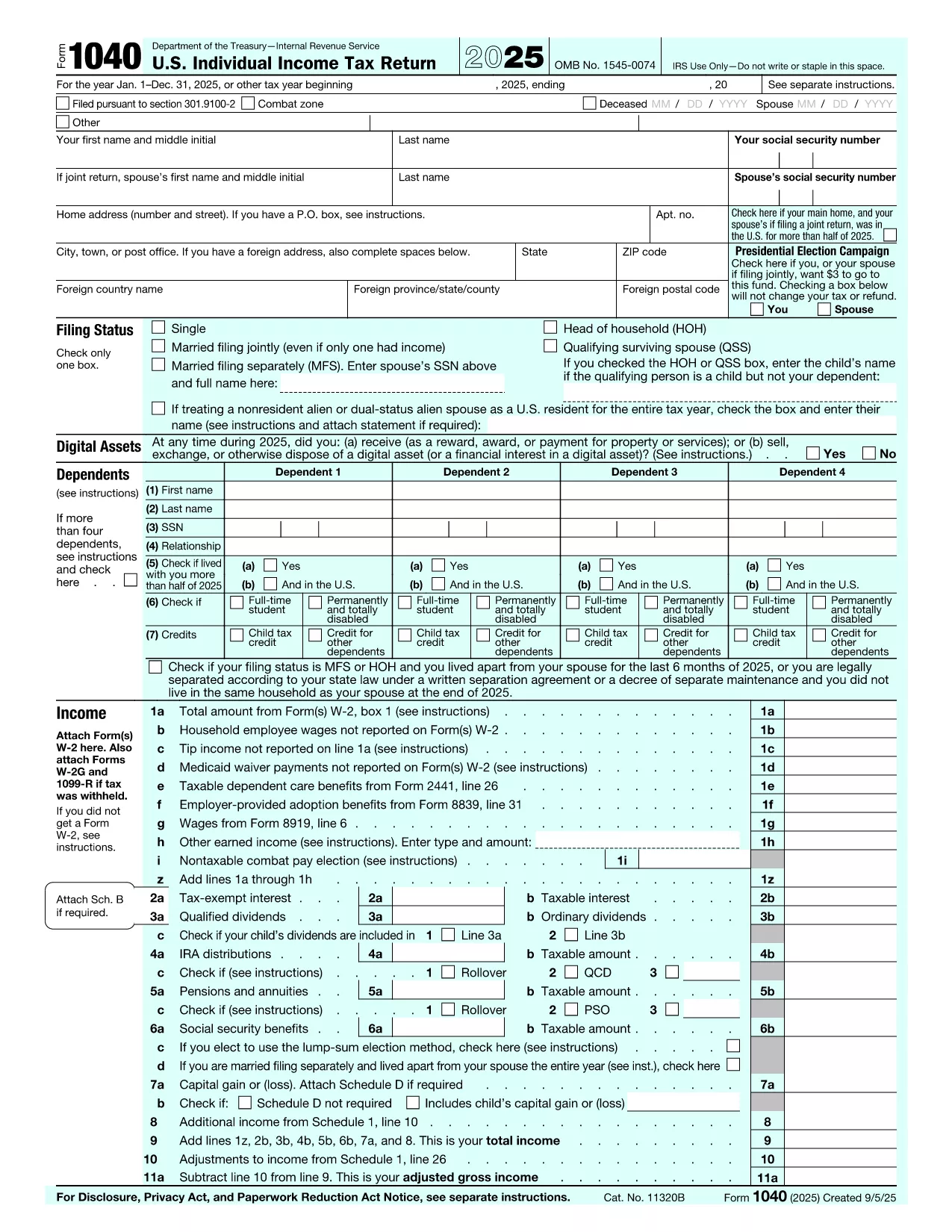
個人納税フォーム: これらのフォームは、個人の納税者が個人所得を報告し、控除、控除、免除を申請するために使用します。例としては、米国の1040 フォームや英国の自己申告納税申告書などがあります。

事業税フォーム: 事業税フォームは、企業、パートナーシップ、または自営業者が事業収入、経費、その他の税関連情報を報告するために使用します。例には、米国のスケジュール C フォーム (事業からの損益) や英国の CT600 フォーム (法人税申告書) が含まれます。

給与税フォーム: これらのフォームは、雇用主が従業員の給与から源泉徴収された賃金、給与、税金を報告するために使用されます。例としては、米国の W-2 形式や英国の P60 形式などが挙げられます。

売上税フォーム: 売上税フォームは、企業が課税対象の商品またはサービスに対して徴収した売上税を報告および納付するために使用されます。特定の売上税フォームは管轄区域によって異なります。

付加価値税 (VAT) フォーム: VAT フォームは、販売に対して徴収された VAT を報告および送金し、購入に対する VAT クレジットを請求するために、付加価値税を課す国で使用されます。例には、多くの国で使用されている VAT 申告書が含まれます。

見積納税フォーム: 見積納税フォームは、自営業収入や投資収入など、源泉徴収の対象とならない所得に対する見積税を報告し、支払うために使用されます。

これらは、存在する可能性のある多数の納税フォームのほんの一例です。必要な特定のフォームは、お住まいの国または管轄区域の税法および規制によって異なります。どのフォームが自分の状況に適用できるかを判断するには、税務当局のガイドラインを参照するか、専門家のアドバイスを求めることが重要です。

特徴

PDFフィラー

オンラインで PDF フォームに記入する最も簡単な方法

  • Form Q PDF をすばやく入力してください
    Form Q PDF をオンラインですばやく入力する方法をお探しですか?オンラインの無料 PDF フォーム フィラーを使用すると、この PDF ドキュメントを 1 分以内に編集して入力する方法がわかります。
  • 使いやすいオンライン PDF エディター
    再スキャンして返送する前に、編集できるように PDF ファイルを印刷することにうんざりしていませんか? PDFドキュメントをオンラインで無料で編集.当社のオンライン PDF エディターを使用して、時間と紙を節約してください。
  • 優れたツール、すべてのプラットフォーム
    Mac で Form Q PDF を入力する方法や、PDF フィラーを無料で使用する方法を知りたいですか?当社のオンライン PDF ツールは、すべてのプラットフォームで動作します。
  • 安全なファイル ストレージ
    完成した「Form Q PDF」ファイルは、Amazon クラウド ホスティングが管理する安全なデータベースに保存されます。いつでもシステムからファイルを削除できます。いずれにせよ、これらのファイルは 24 時間後に自動的に削除されます。
  • {キーワード} とチャットする
    無料の PDF リーダー アシスタントである Chatize で「Form Q PDF」とチャットします。質問すると、「Form Q PDF」から回答が得られます。上の [ドキュメントとチャット] ボタンをクリックするだけです。

フィルセッションを削除

選択したフィルセッションを削除しますか?この場合、フォームへの記入の進捗状況は失われます。

編集セッションを削除する

選択した編集セッションを削除しますか?この場合、フォームの作成および編集の進行状況は失われます。