언어 선택

IRS Form 1040 – Line 11 Fillable PDF

  1. 국가 미국
  2. 언어 영어
  3. 활동 구실
  4. 부서 IRS
IRS Form 1040 – Line 11 Fillable PDF

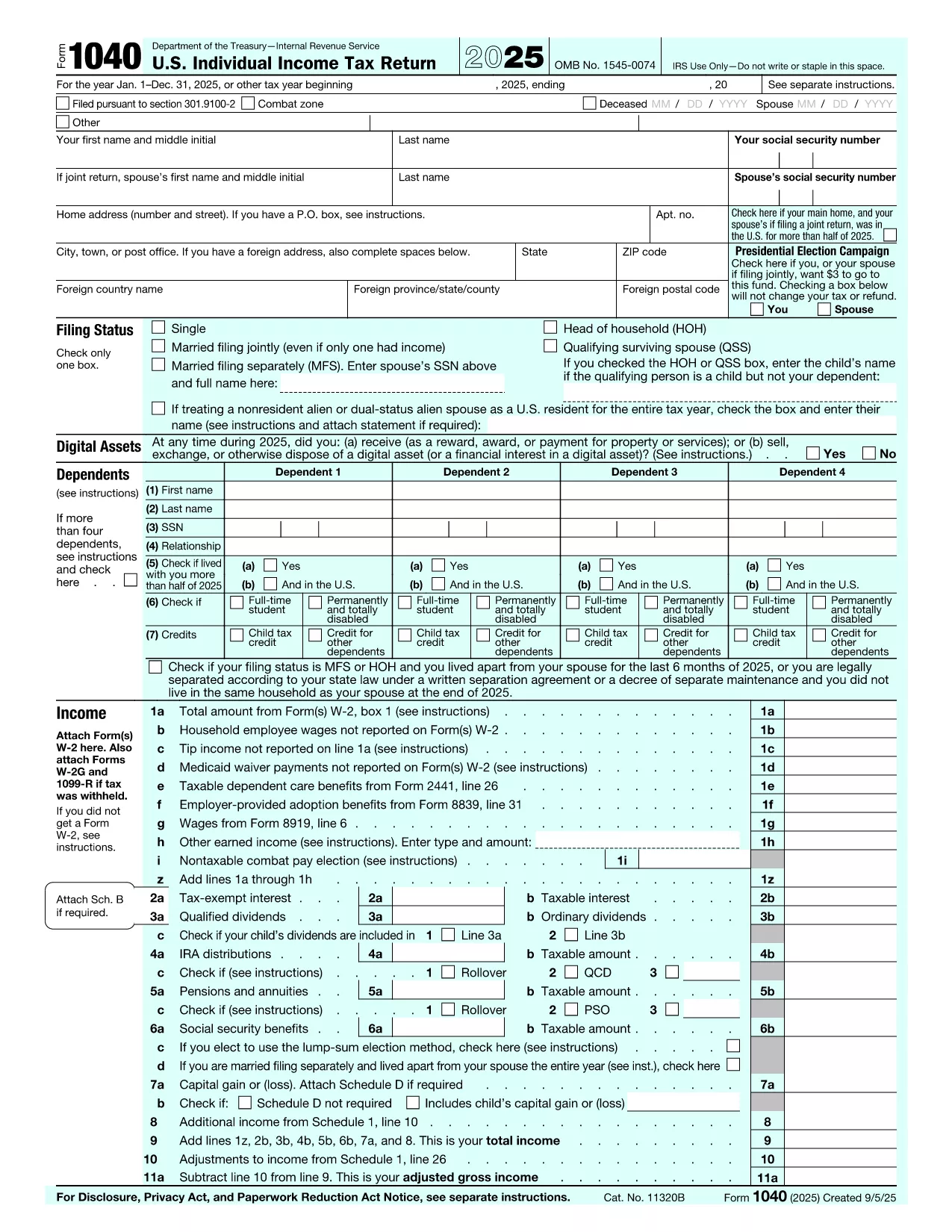
Line 11 on the IRS Form 1040 reports taxable refunds, credits, or offsets of state and local income taxes. Getting this line right can affect your overall tax liability, so a fillable PDF that guides you step‑by‑step is essential.

What Is Line 11 on Form 1040?

Line 11 asks for the amount of any state or local income tax refund you received that must be reported as taxable income. If you itemized deductions in the prior year and received a refund, part or all of that refund could be taxable.

How to Fill Out Line 11 Using Formize

Instead of downloading the PDF and opening a separate editor, simply click the "Fill out this form" button on this page. The Formize PDF Filler app will load instantly, letting you complete the form directly in your browser.

  • Step 1: Click the blue "Fill out this form" button.
  • Step 2: The Formize filler loads; the PDF is already set to the correct page.
  • Step 3: Click the field next to Line 11 and enter the taxable refund amount.
  • Step 4: Continue filling the rest of the return or save the file for later.
  • Step 5: Download the completed PDF or submit it electronically through your tax software.

Common Mistakes & Tips for Line 11

  • Forgot to check the prior‑year itemized deduction: Only report a refund if you claimed a deduction for state taxes in the previous year.
  • Using the wrong amount: Use the exact figure from your state tax return or the 1099‑G you received.
  • Leaving the field blank: A blank line is interpreted as zero, which could trigger an audit if a refund was actually received.
  • Rounding errors: Round to the nearest dollar as the IRS requires.

Where to Submit Your Completed Form

After you finish, you can:

  • Upload the PDF to your tax‑preparation software (TurboTax, H&R Block, etc.).
  • Print and mail it with your paper return to the IRS address listed in the Form 1040 instructions.
  • Store it securely for future reference; the IRS may request a copy during an audit.

Using Formize’s online filler saves time, reduces errors, and keeps your data encrypted while you work.

자주하는 질문
  • What does Line 11 on Form 1040 represent?

    Line 11 reports taxable refunds, credits, or offsets of state and local income taxes that you received during the tax year.

  • Do I need to fill Line 11 if I didn’t receive a state tax refund?

    No. If you did not receive a refund, you can enter zero or leave the field blank, which the IRS treats as zero.

  • Can I use the Formize filler on a mobile device?

    Yes. The Formize PDF Filler works in modern browsers on smartphones and tablets.

  • Is the fillable PDF version of Form 1040 official?

    The PDF is the official IRS Form 1040. The fillable version is a digital replica provided by Formize for convenient online editing.

  • Will my data be stored after I finish filling the form?

    Formize does not store any personal data. All information remains in your browser until you download or delete the file.

  • How do I know if my state refund is taxable?

    If you itemized deductions for state income tax in the previous year, the portion of the refund that provided a tax benefit is taxable. Use the IRS worksheet in the Form 1040 instructions for guidance.

  • What should I do if I make a mistake on Line 11 after filing?

    File Form 1040‑X, Amended U.S. Individual Income Tax Return, and correct the amount on Line 11.

  • Is there a deadline to submit the filled Form 1040?

    The filing deadline is typically April 15 of the following year, unless an extension is granted.

어떻게

4개의 간단한 단계를 통해 온라인으로 tax form line 11를 무료로 작성하는 방법:

  1. 1
    Click the Fill‑out Button
    Press the "Fill out this form" button on the page to launch the Formize PDF Filler.
  2. 2
    Enter Line 11 Amount
    When the filler loads, click the field next to Line 11 and type the taxable refund amount.
  3. 3
    Complete or Save
    Finish the rest of the form, then download the completed PDF or save it for later use.
  4. 4
    Submit Your Return
    Upload the finished PDF to your tax software or print and mail it to the IRS.
Formize PDF 필러 앱
에 대한

세금 양식

tax form line 11는 개인 또는 기업의 소득, 공제 및 납세 의무에 대한 정보를 관련 세무 당국에 보고하는 데 사용되는 문서인 세금 양식 중 하나입니다. 이 양식은 세법을 준수하고 납세 의무를 이행하는 데 필요합니다. 세금 양식은 국가 및 특정 세금 요건에 따라 다릅니다. 다음은 몇 가지 일반적인 세금 양식 유형입니다.

개인 세금 양식: 이 양식은 개인 납세자가 개인 소득과 청구 공제, 공제 및 면제를 신고하는 데 사용됩니다. 예를 들어 미국의 1040 양식 또는 영국의 자진 신고서 양식이 있습니다.

사업세 양식: 사업세 양식은 회사, 파트너십 또는 자영업자가 사업 소득, 비용 및 기타 세금 관련 정보를 보고하는 데 사용됩니다. 예를 들어 미국의 Schedule C 양식(사업 이익 또는 손실) 또는 영국의 CT600 양식(회사 세금 신고서)이 있습니다.

급여 세금 양식: 이 양식은 고용주가 직원의 급여에서 원천징수된 임금, 급여 및 세금을 보고하는 데 사용됩니다. 예를 들어 미국의 W-2 양식 또는 영국의 P60 양식이 있습니다.

판매세 양식: 판매세 양식은 기업이 과세 대상 상품이나 서비스에 대해 징수한 판매세를 신고하고 송금하는 데 사용됩니다. 구체적인 판매세 양식은 관할권에 따라 다릅니다.

부가가치세(VAT) 양식: VAT 양식은 판매 시 징수된 VAT를 신고 및 납부하고 구매 시 VAT 공제를 청구하기 위해 부가가치세를 부과하는 국가에서 사용됩니다. 그 예로는 많은 국가에서 사용되는 VAT 신고 양식이 있습니다.

추정 세금 양식: 추정 세금 양식은 자영업 소득, 투자 소득 등 원천징수 대상이 아닌 소득에 대한 추정세를 신고하고 납부하는 데 사용됩니다.

이는 존재할 수 있는 수많은 세금 양식 중 몇 가지 예일 뿐입니다. 필요한 특정 양식은 해당 국가 또는 관할권의 세법 및 규정에 따라 다릅니다. 귀하의 상황에 어떤 양식이 적용되는지 결정하려면 세무 당국의 지침을 참조하거나 전문가의 조언을 구하는 것이 중요합니다.

특징

PDF 필러

온라인에서 PDF 양식을 채우는 가장 쉬운 방법

  • tax form line 11를 빠르게 작성하세요.
    온라인에서 tax form line 11을(를) 빠르게 채우는 방법을 찾고 계십니까? 온라인 무료 PDF 양식 필러를 사용하면 1분 이내에 이 PDF 문서를 편집하고 채우는 방법을 알 수 있습니다.
  • 사용하기 쉬운 온라인 PDF 편집기
    다시 스캔하여 다시 보내기 전에 편집할 수 있도록 PDF 파일을 인쇄하는 데 지쳤습니까? 온라인에서 무료로 PDF 문서를 편집하세요. 온라인 PDF 편집기를 사용하여 시간과 종이를 절약하십시오.
  • 훌륭한 도구, 모든 플랫폼
    Mac에서 tax form line 11를 채우는 방법이나 PDF 필러를 무료로 사용하는 방법이 궁금하십니까? 당사의 온라인 PDF 도구는 모든 플랫폼에서 작동합니다.
  • 안전한 파일 저장
    완료된 "tax form line 11" 파일은 Amazon 클라우드 호스팅에서 관리하는 보안 데이터베이스에 저장됩니다. 언제든지 시스템에서 파일을 삭제할 수 있습니다. 어쨌든 이러한 파일은 24시간 후에 자동으로 삭제됩니다.
  • tax form line 11님과 채팅
    무료 PDF 리더 도우미인 Chatize에서 "tax form line 11"와 채팅하세요. "tax form line 11"에서 질문하고 답변을 받으세요. 위의 문서와 채팅 버튼을 클릭하세요.

필링 세션 삭제

선택한 필링 세션을 삭제하시겠습니까?이 경우 양식 작성 진행 상황이 손실됩니다.

편집 세션 삭제

선택한 편집 세션을 삭제하시겠습니까? 이 경우 양식 작성 및 편집 진행 상황이 손실됩니다.