

{키워드} 템플릿
PDF 문서를 보고 작성하기 위한 기존 기능 세트와 웹 애플리케이션 및 반응형 레이아웃의 이점을 결합하면 몇 분 만에 G-28 form을(를) 완료할 수 있습니다.
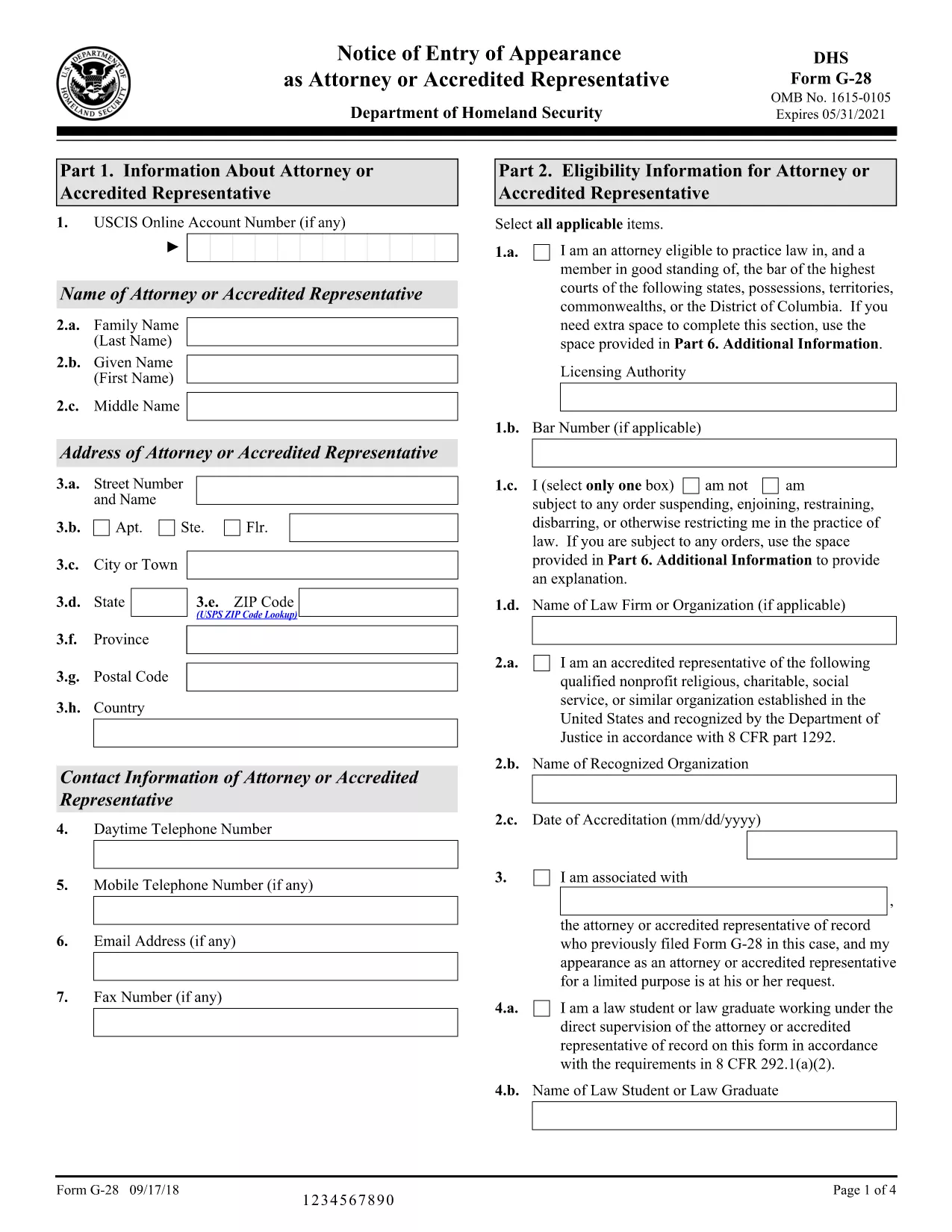
The G‑28, Notice of Entry of Appearance as Attorney or Accredited Representative is the official form used by immigration attorneys and accredited representatives to inform U.S. Citizenship and Immigration Services (USCIS) that they will be representing a client. Traditionally you would download a static PDF, print it, and hand‑write your answers. With Formize, you can fill the fillable G‑28 PDF directly in your browser – faster, error‑free, and without any extra software.
The G‑28 establishes a legal relationship between the applicant and their legal representative. It is required for most immigration filings, including adjustment of status, asylum, and naturalization applications. The form collects basic information about the attorney or accredited representative, the client, and the case type.
Instead of downloading the PDF and opening it in a PDF editor, simply click the "Fill out this form" button on this page. The Formize PDF Filler app will load in seconds, presenting a clean, fillable version of the G‑28. Follow the on‑screen prompts, save your progress, and download the completed PDF ready for submission.
Attach the signed G‑28 to the front of the primary immigration application package or upload it directly through your USCIS online account (myUSCIS). If you are filing by mail, include the completed form with the other supporting documents.
Below you’ll find answers to the most common questions about the G‑28, plus links to official USCIS guidance.
Only a licensed attorney or an accredited representative (such as a recognized nonprofit organization) may file a G‑28 on behalf of an immigration applicant.
USCIS accepts electronic signatures when the form is printed and signed after being filled online. For paper submissions, the attorney must sign the printed form.
No. Each G‑28 must reference a specific case number and applicant. Submit a separate form for each distinct immigration proceeding.
File a corrected G‑28 with the updated information and include a brief cover letter explaining the correction.
The G‑28 is required whenever an attorney or accredited representative is representing a client. Some forms have a built‑in representation section, but the G‑28 is still the standard notice.
USCIS releases a new version when there are regulatory changes. Always use the latest version from the official USCIS website.
Yes. The Formize PDF Filler works on all modern browsers, including mobile Safari and Chrome.
The USCIS website provides a detailed instruction sheet linked on the form’s download page.
No. The G‑28 itself carries no fee; any fees are associated with the underlying immigration application.
You can re‑download the filled PDF from the Formize app if you saved it to your account, or ask your attorney to recreate the form.
PDF 문서를 보고 작성하기 위한 기존 기능 세트와 웹 애플리케이션 및 반응형 레이아웃의 이점을 결합하면 몇 분 만에 G-28 form을(를) 완료할 수 있습니다.
온라인에서 PDF 양식을 채우는 가장 쉬운 방법
필링 세션 삭제
편집 세션 삭제