Select language

Fillable SIR (Standard Incident Report) PDF Form

  1. Country USA
  2. Language English
  3. Activity Workplace Safety
  4. Department OSHA
Fill out this form
Fillable SIR (Standard Incident Report) PDF Form

The SIR (Standard Incident Report) is a widely used document for reporting workplace injuries, near‑misses, and safety incidents. Employers, safety officers, and employees need a quick, accurate way to capture details so that corrective actions can be taken and regulatory requirements are met.

Formize.com hosts a fillable PDF version of the SIR form, letting you complete the report directly in your browser—no Adobe Acrobat or other PDF editor required. The online PDF filler loads instantly, preserves the original layout, and ensures every required field is captured.

Below you’ll find everything you need to know about the SIR PDF, step‑by‑step instructions for filling it out online, common pitfalls to watch for, and where to send the finished report.

What Is the SIR Form?

The SIR form is an official incident‑reporting template used by many U.S. organizations, especially those regulated by OSHA. It captures essential information such as:

  • Date, time, and location of the incident
  • Names of injured parties and witnesses
  • Brief description of what happened
  • Immediate actions taken and recommended preventive measures

How to Fill Out the SIR Form Online

Instead of downloading the PDF and opening it in a desktop editor, simply click the “Fill out this form” button on this page. The Formize PDF Filler app will load in a secure iframe, and you can start typing right away.

Common Mistakes to Avoid

  • Leaving required fields blank – the filler highlights missing information before you can submit.
  • Using abbreviations that are unclear to investigators.
  • Skipping the witness section – OSHA often requires at least one witness statement.
  • Not saving a copy – after submission, download a PDF receipt for your records.

Where to Submit the Completed Form

Once you’ve reviewed the completed SIR, you can either:

  • Print the filled PDF and hand‑deliver it to your safety department.
  • Email the PDF directly to your company’s compliance inbox.
  • Upload the file to your organization’s incident‑management portal.

Download or View the Original PDF

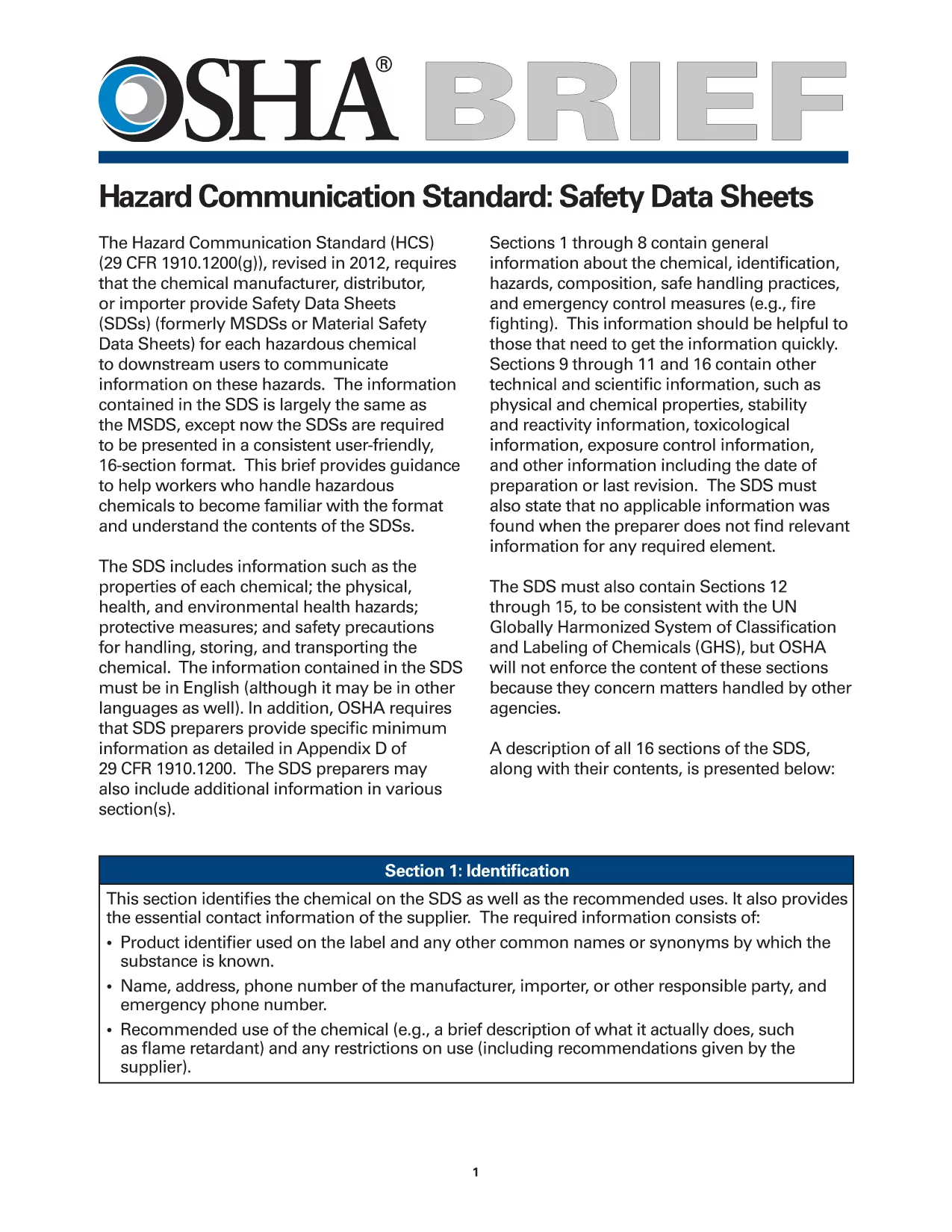
If you need to see the unfilled version, you can download the official OSHA incident‑report PDF from the link below. The fillable version on Formize mirrors this layout exactly.

View the original SIR PDF (OSHA)

FAQ
  • Do I need Adobe Acrobat to fill the SIR form?

    No. Formize’s online PDF filler works in any modern browser, so you can complete the form without installing additional software.

  • Is the fillable SIR PDF legally equivalent to the paper version?

    Yes. The filled PDF retains the original format and signatures, making it acceptable for OSHA and internal compliance audits.

  • Can I save my progress and finish the form later?

    Absolutely. Use the “Save Draft” button to download a partially completed PDF, then re‑upload it later to continue editing.

  • What if I make a mistake after submitting?

    Download a fresh copy of the original PDF, correct the error, and resubmit. Keep both versions for your records.

  • Is my data secure while using Formize?

    Formize uses SSL encryption for all data transmission, and the filled PDF is stored only on your device unless you choose to share it.

  • Can I print the filled SIR form directly from the browser?

    Yes. After completing the form, click the “Print” icon in the filler toolbar to produce a hard‑copy version.

  • Do I need an account to use the fillable PDF?

    No account is required. The filler is publicly accessible for anyone who needs to complete the SIR form.

  • Where can I find help if I have questions about the SIR content?

    Consult your organization’s safety officer or refer to OSHA’s guidance documents linked on the original PDF page.

HOW TO

How to fill out SIR PDF for free, online in 5 easy steps:

  1. 1
    Click the Fill‑out Button
    Press the “Fill out this form” button on this page. The Formize PDF Filler will open in a secure window.
  2. 2
    Wait for the Filler to Load
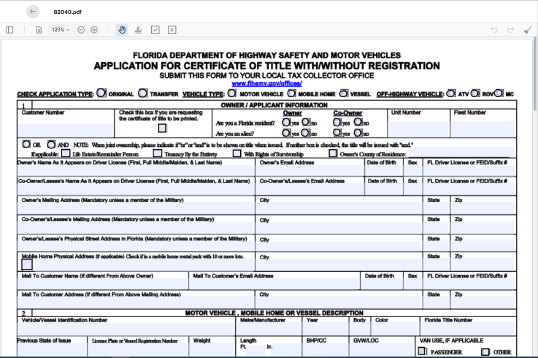
    A few seconds may pass while the fillable PDF loads. You’ll see the exact SIR layout appear, ready for input.
  3. 3
    Enter All Required Information
    Complete each highlighted field—date, location, employee details, incident description, and corrective actions. Required fields are marked with a red asterisk.
  4. 4
    Review and Validate
    Click the “Validate” button. The filler will flag any missing or incorrectly formatted entries.
  5. 5
    Save, Download, or Submit
    When everything looks correct, either download a copy for your records or use the built‑in “Submit” option to email the filled PDF to your safety team.
Formize PDF Filler app
ABOUT

SIR PDF template

With the traditional set of features for viewing and filling out a PDF document, combined with the benefits of a web application and responsive layout, you can complete SIR PDF in minutes.

FEATURES

PDF Filler

The easiest way to fill SIR PDF online

  • Quickly fill out SIR PDF
    Looking for a way to quickly fill SIR PDF online? With our online free PDF form filler, you’ll know how to how to edit and fill this pdf document in less than a minute.
  • Easy to use online PDF editor
    Fed up with printing out PDF files so you can edit them, before rescanning and sending them back? Edit PDF documents for free online. Use our online pdf editor to save time and paper.
  • Great tools, all platforms
    Wondering how to fill in SIR PDF on a Mac, or maybe how to use a PDF filler free? Our online PDF tools work on all platforms.
  • Secure file storage
    Completed "SIR PDF" files are stored in a secured database managed by Amazon Cloud hosting. You can delete your files from our system anytime. In any case, these files are automatically deleted after 24 hours.
  • Chat with SIR PDF
    Chat with "SIR PDF" on Chatize that is a free PDF reader assistant. Ask questions and get answers from "SIR PDF". Just click on Chat With Document button above.

Delete filling session

Delete the selected filling session? In this case, your progress in completing the form will be lost.

Delete editing session

Delete the selected editing session? In this case, your progress in creating and editing the form will be lost.